
What Is MS Office? Apps, Uses and Buying Options
A beginner-friendly explanation of Microsoft Office applications, everyday uses, account types and the choices between browser apps, subscriptions and one-time purchases.
What Is MS Office? A Simple Guide to Apps and Everyday Uses
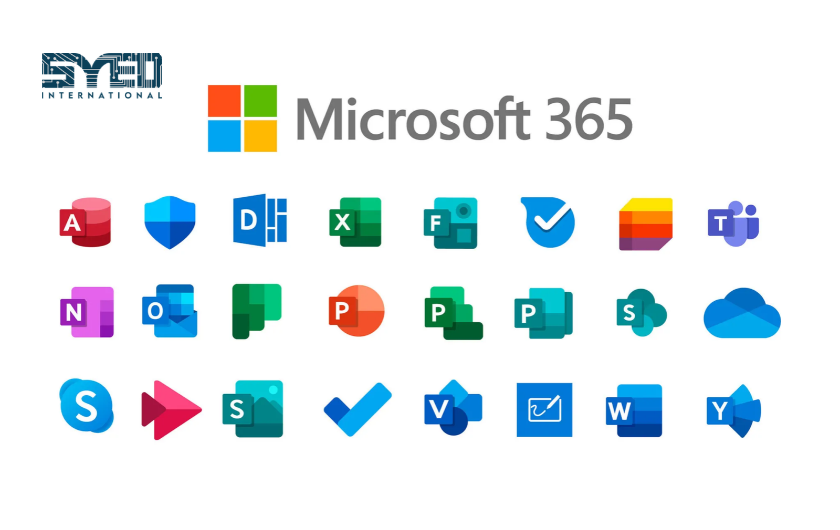
MS Office, short for Microsoft Office, is a name people use for Microsoft’s productivity applications. Familiar examples include Word for documents, Excel for spreadsheets and PowerPoint for presentations. The exact applications and services depend on the product you choose. Today, those choices include Microsoft 365 subscriptions and one-time Office purchases. Understanding the difference helps you avoid buying software that does not match your work. This guide answers the question “what is MS Office” through practical examples. It explains common tasks, account types, installation choices and everyday file management without assuming that you already understand software licensing or business email systems.
What Is MS Office Used For?
Office applications help people create, organise and communicate information. A student might prepare an assignment, calculate a project budget and present research. A small business might write quotations, review stock records and create a sales presentation. The applications support different tasks, so choosing the right one usually makes the work easier to maintain.
Think about the information before choosing the app. A written proposal needs paragraphs and page layout. A sales report may need calculations and a structured table. A meeting presentation needs a clear sequence of visual points. Trying to complete every task inside one application can create unnecessary work. Learning a few basic habits often matters more than discovering every available feature immediately.
Word: Preparing Documents People Can Read
Microsoft Word supports written documents such as letters, reports and proposals. You can organise text with headings, insert tables and adjust page layout. For a business, a consistent quotation template can reduce repeated formatting work. The template should leave space for information that changes, such as the customer name, service description and agreed scope.
Use actual heading styles rather than making every heading look different manually. This helps create a consistent document structure and simplifies later changes. Before sending a file, review page breaks, spelling and the intended final format. A document that looks tidy on your screen can still need checking when exported or opened elsewhere. Keep an editable original when future revisions are likely.
Excel: Working With Structured Information
Microsoft Excel organises information in worksheets with rows and columns. It supports calculations, sorting and analysis. A small business might use it to review enquiries or compare monthly expenses. Begin with consistent column headings and one clear meaning for each column. Mixing unrelated notes with dates and amounts makes the sheet harder to interpret.
Formulas can reduce manual calculation, but they still need review. Test your worksheet with simple values whose results you can check independently. When someone adds new records, confirm that relevant calculations include them. Protect important originals and document what the workbook is intended to do. A spreadsheet becomes more dependable when its structure and assumptions are understandable to the next person using it.
PowerPoint: Explaining an Idea in Sequence
Microsoft PowerPoint supports slide-based presentations. It can help you explain a proposal, teach a process or introduce a service. A useful presentation starts with the audience and the question they need answered. Choose a sequence that develops the explanation rather than collecting unrelated statements on separate slides.
Keep the visible message clear. A diagram or short comparison can sometimes explain more than a crowded paragraph. Use readable text and images that support the subject. Before a meeting, test the presentation on the equipment you expect to use. Also prepare a suitable alternative format when the audience needs to review the information afterward without hearing your spoken explanation.
| Application | Typical task | Useful starting habit |
|---|---|---|
| Word | Letters, proposals and reports | Use a consistent document structure |
| Excel | Tables, calculations and records | Keep columns and data types consistent |
| PowerPoint | Presentations and briefings | Give each slide a clear purpose |
| Outlook | Email and calendar work | Separate messages from the action they require |
| OneNote | Organised notes | Use a structure that helps you find information later |
Outlook Is an App, Not Automatically an Email Service
Outlook helps users work with email and calendars, but the app and the underlying email service are different things. Installing Outlook does not automatically create an address on your company’s domain. The mailbox needs an appropriate service and configuration. This distinction matters when a business expects software installation alone to replace its existing email provider.
Before changing anything, identify where your email currently operates and who controls the domain settings. Record the accounts and devices that staff use. If the goal is company email, file collaboration and central administration, discuss those requirements together. Syed International provides a starting point for a conversation about Microsoft 365 requirements rather than treating every purchase as an isolated app installation.
What Is the Difference Between Office and Microsoft 365?
Microsoft sells both subscription products and one-time Office editions. A subscription is a continuing service arrangement whose included applications depend on the plan. A one-time edition provides the specified release under its licence terms. The names may sound similar, but the purchasing model and included services are not identical. Check the exact product name before comparing offers.
Microsoft’s Office 2024 comparison explains this distinction. A one-time Office purchase does not include an automatic upgrade to the next major release. Avoid interpreting “one-time purchase” as every future product version being included. Decide whether your main requirement is the selected desktop applications or a broader subscription environment.
Browser Apps and Desktop Apps Serve Different Needs
Browser-based tools can be useful when you want to work without installing a full desktop suite. Microsoft offers free web versions of several productivity applications through a Microsoft account. However, a browser version should not be assumed to match every feature of the desktop application. Test the actual files and functions you rely on before changing your working setup.
Installed applications can be useful for work that needs particular desktop features or local file access. Some tasks can continue without an active connection, but online services and subscription checks introduce additional requirements. Avoid a blanket promise that every function works offline. For a team with important templates or specialised workbooks, a small practical trial can reveal compatibility questions before wider deployment.
Understand Personal and Work Accounts
The account used to sign in affects ownership and administration. A personal account and an organisation-managed work account are not interchangeable concepts. Your business should know which account owns a subscription and where important documents are stored. Files connected to an employee’s personal setup may create access problems when that employee leaves.
Agree a sensible account structure before moving shared work. Identify who manages access and who can recover important accounts. Keep staff responsibilities clear and use an appropriate process for joining and leaving the business. These decisions are often more important than the first installation. A well-organised setup helps prevent ordinary staff changes from becoming a document recovery problem.
Organise Files Before Adding More Tools
A new suite cannot automatically correct unclear file habits. Decide how documents are named, where approved versions belong and who updates shared material. A consistent folder structure helps staff find information without asking several people. Avoid making the filename the only explanation of whether a document is a draft or an approved version.
Review sharing permissions when documents move between people. Send access suitable for the task and confirm the recipient can open the intended file. Keep a recovery plan for important information. Synchronisation and sharing are useful capabilities, but your business still needs to decide how it will respond to deletion, mistakes or lost access. Explain those responsibilities during training.
Choose Software Through a Small Working Trial
Create a short list of real tasks before purchasing. Open an important document, test a representative workbook and review a presentation. Confirm the required fonts, file formats and features. If several staff members work differently, include examples from each group. A plan that suits one employee may not match another person’s responsibilities.
When requesting assistance, describe the task rather than only asking for “Office.” Explain the devices involved, whether company email is needed and who must control the accounts. Ask which edition fits those requirements. This approach turns an unclear software request into a reviewable decision and helps avoid paying for the wrong product or missing an essential capability.
Frequently Asked Questions
What is MS Office in simple words?
It is a familiar name for Microsoft’s productivity applications used to create documents, spreadsheets and presentations. Word, Excel and PowerPoint are common examples. The exact package varies, so check the product edition. Microsoft 365 subscriptions and one-time Office products offer different purchasing arrangements and combinations of features.
Is MS Office the same as Windows?
No. Windows is an operating system, while Office applications help with productivity tasks such as writing and calculations. A computer can have Windows installed without having the paid Office desktop applications included. Check what came with the device instead of assuming that one purchase automatically provides both products.
Can I use Microsoft Office without paying?
Microsoft offers free web applications for eligible everyday tasks through a Microsoft account. These are different from assuming every paid desktop application is free. Consider whether the available browser features meet your needs. Your school or workplace may also provide access under its own arrangements, which should be checked separately.
Does every Office product include Outlook?
No. Application lists vary by edition and plan. Check the exact product description before purchasing. Also remember that an email application and a hosted business mailbox are separate requirements. Tell the provider if you need an address using your company domain rather than only software for reading an existing mailbox.
Does a small company need a subscription?
That depends on the work, included services and administration needs. A company requiring shared resources and central account management should evaluate appropriate business plans. A narrower desktop requirement may lead to a different choice. Review licensing terms and actual workflows instead of deciding from the word “subscription” alone.
Match the Applications to the Work
Understanding what is MS Office helps you ask better questions before choosing software. Start with the documents, calculations and communication your team handles. Then check the applications, account arrangements and purchasing model required to support those tasks. Clear file habits and training help turn installed software into useful everyday tools.
For assistance reviewing a business setup, contact Syed International with your staff count, devices and email requirements. Explain the tasks that matter most. That information helps establish whether you need individual applications, a one-time edition or an appropriately configured Microsoft 365 environment.