
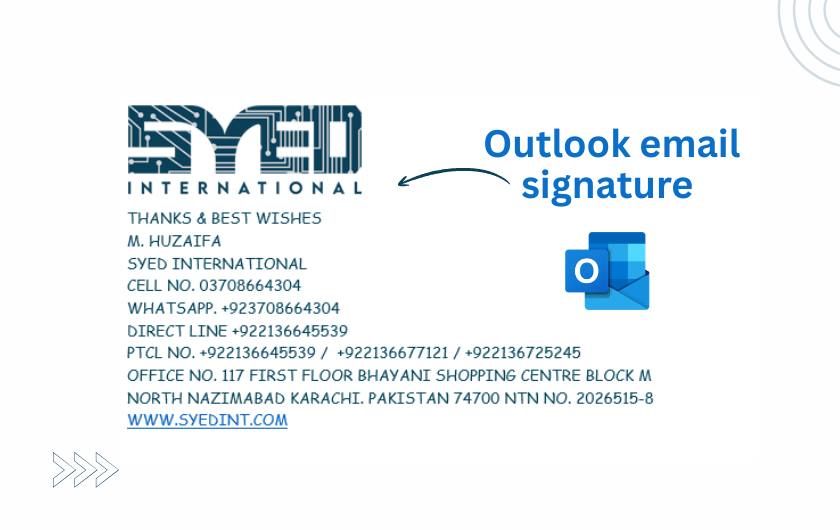
Professional Outlook Email Signature for Business
Design and maintain a practical email signature that helps recipients identify the sender and use the correct contact information.
How to Create a Professional Outlook Email Signature for a Small Business
A professional email signature helps the recipient answer a few simple questions: who sent the message, which organisation they represent and how to contact them.
It does not need to look like a full advertising banner. Large graphics, numerous social icons and several competing calls to action can make ordinary correspondence harder to read.
A useful professional Outlook email signature for a small business combines accurate details with a restrained design. It should remain understandable when images are hidden, when the message appears on a phone and when a long conversation includes several replies.
This guide explains how to plan the content, apply it in the correct Outlook environment and maintain consistency across staff. The aim is a signature that supports business communication rather than distracting from the message.
Decide What the Recipient Needs
Start with the information the reader is most likely to use. A name, role, company and suitable contact route are usually more useful than a long list of achievements.
Choose contact details according to the employee’s responsibilities. A customer-facing staff member may need a direct business number, while another role may use a shared department contact.
Do not include personal information merely because there is space. The signature should reflect the business’s approved communication arrangement.
Ask whether the recipient needs an office address in every message. Include it when it serves a purpose, but avoid turning the signature into a dense block that overwhelms a short reply.
Keep Names and Roles Accurate
Consistency begins with correct information. Confirm each employee’s preferred business name and approved role title.
Avoid inventing senior-sounding titles for visual impact. The signature should help customers understand the sender’s actual responsibility.
Use the same naming conventions across the team where appropriate. If one employee uses a department name and another uses an unrelated informal description for the same function, customers may become confused.
Review details when staff change roles. A signature is a small document, but outdated information can send customers to the wrong person or create incorrect expectations about who can approve a request.
Choose One Clear Business Website Link
Use the company’s actual website address and test the destination. A simple descriptive link is usually enough.
For Syed International correspondence, the business website can appear as syedint.com. There is no need to create several near-identical website links throughout the signature.
If a particular campaign or booking link is included, assign responsibility for keeping it current. A temporary promotion should not remain in every employee’s signature after it ends.
Avoid unnecessary shortened links when the full business domain is understandable. Recipients should be able to recognise where the link is intended to take them.
Use Branding Without Making the Signature Heavy
A small logo can support recognition, but it should not replace all written contact information.
Keep the text readable even when images are unavailable. If the name, phone number and website exist only inside one large image, the recipient may struggle to copy or use them.
Choose restrained colours and comfortable text sizes. A signature should fit the company identity without competing with the message body.
For a team using a deep teal brand colour, a limited accent can create consistency. That does not require every line to appear in a different shade or a large decorative frame around the entire block.
Avoid Treating Email Like a Webpage
Email clients can display the same content differently. A design that looks polished in one preview may wrap awkwardly in another.
Prefer a simple arrangement that can tolerate narrower widths and different viewing settings. Avoid relying on elaborate positioning or large visual effects.
Do not copy a complex webpage section directly into the signature editor and assume it will behave identically. The communication environment is different.
Test with the actual Outlook versions and recipient views relevant to the business. The practical objective is consistent readability, not pixel-perfect imitation of the website header.
A compact signature usually survives these variations more comfortably than an oversized layout.
Create the Signature in the Correct Outlook Environment
Outlook signature settings differ across supported experiences. Confirm whether the employee uses new Outlook, classic Outlook, the web interface or another client.
Microsoft’s signature setup guidance provides instructions for the relevant environments. Follow the section that matches the user’s application rather than searching for a menu that belongs to another version. Microsoft Support
Check the account associated with the signature. An employee may send from more than one mailbox, and the correct signature needs to accompany the intended sender.
Do not assume that updating one application automatically updates every device and account. Verify the actual coverage.
Set New-Message and Reply Behaviour
A full signature may be suitable for the first message, while a shorter version may be preferable in ongoing conversations.
Decide what the business expects for replies and forwards. Repeating a large logo and several promotional lines in every response can make a thread unnecessarily long.
Check the default selections in the relevant Outlook environment. Staff should know whether the signature appears automatically or must be inserted manually.
Test a new message and a reply separately. A signature that works correctly in one situation may be missing or duplicated in another.
The chosen behaviour should make ordinary correspondence easy rather than create extra editing for every email.
Use a Practical Content Structure
The following table shows how to assess common signature elements.
| Element | Useful purpose | Review question |
|---|---|---|
| Employee name | Identifies the sender | Is the spelling and preferred format correct? |
| Role or department | Explains responsibility | Does it reflect the actual position? |
| Company name | Establishes business identity | Is the approved trading identity used? |
| Business phone | Provides an alternative contact route | Does it reach the intended person or team? |
| Website | Helps the recipient find the business | Is the destination correct and maintained? |
| Logo | Supports recognition | Is it readable without dominating the message? |
| Optional notice | Communicates an approved requirement | Is the wording necessary and current? |
The best signature uses only the elements that serve the organisation’s communication needs.
Test Links and Contact Actions
Send a controlled test message and use the links from the received copy.
Check the website address, email link and telephone action where included. A visually correct number can still have an incorrect underlying link.
Review the country code and formatting for the intended audience. A company serving Pakistan and overseas customers should consider whether the number remains understandable outside the local context.
Do not test only by clicking inside the signature editor. The delivered message is what matters.
Ask a colleague to use the contact information without guidance. This can reveal confusing labels or a number that reaches an unrelated department.
Check Mobile Views and Image Behaviour
Open the test message on a phone or a representative narrow display. Look for awkward line breaks, tiny text and images that push the contact details off screen.
Check whether the signature remains useful if the logo does not load. The essential information should still be present as readable text.
Review light and dark viewing conditions where relevant. Do not assume that every colour combination will remain equally clear across clients.
A small amount of testing can prevent a signature from appearing unprofessional to a large share of recipients.
Focus on readability and usable contact details rather than minor differences that do not affect the message.
Establish a Staff Template and Update Process
Prepare one approved design with clearly identified fields for staff details.
Nominate someone to maintain the company information, logo and optional campaign content. Employees should know where the current template is stored.
When contact details change, update the relevant signatures and verify the result. Do not assume a message announcing the change guarantees that every device has been corrected.
For larger teams, review whether a central management arrangement is justified. The requirement should include coverage, ownership and support rather than assuming that a basic mailbox subscription automatically enforces uniform signatures everywhere.
Keep the process proportionate to the size and complexity of the team.
Separate Signature Design From Delivery Problems
A signature is one part of an email, but missing messages or delivery errors may involve other causes.
Do not promise that removing a logo will fix every spam-placement problem. Investigate the actual sending route, error information and recipient behaviour where necessary.
Equally, avoid making the signature unnecessarily heavy with large attachments or excessive repeated content. A restrained design keeps the communication clearer.
If the business has both branding and delivery concerns, describe them separately in the support request.
For help reviewing business email setup and staff consistency, contact Syed International with the Outlook versions, account arrangement and an example of the intended signature.
Frequently Asked Questions
Should the whole signature be one image?
That can make contact information harder to read, copy and use when images are hidden or displayed differently. Keep essential details as text where practical. A logo can support branding without carrying the entire signature’s meaning.
Will one Outlook update change every device?
Do not assume that. Behaviour depends on the supported applications, accounts and configuration. Verify the signature on the devices employees actually use, especially if they alternate between desktop, browser and mobile email.
How much promotional content should be included?
Use only content that serves a clear business purpose. A short, relevant link may be useful, while several competing banners can distract from the message. Assign an owner to remove temporary promotions when they are no longer current.
Should replies use the same full signature?
That is a business choice. A shorter reply signature can keep long conversations readable. Test the default behaviour and make sure staff can still be identified without inserting a large block repeatedly.
Can a professional signature guarantee better email delivery?
No. Delivery depends on the broader sending and receiving environment. A clean signature improves presentation, but it does not replace correct account configuration or diagnosis of delivery problems.
Make the Sender Easy to Identify and Contact
A professional Outlook email signature for a small business should be accurate, readable and easy to maintain.
Use clear text, restrained branding and tested links. Then verify the result across the applications your team uses. For help reviewing business email workflows and consistency, discuss the requirements with Syed International.