
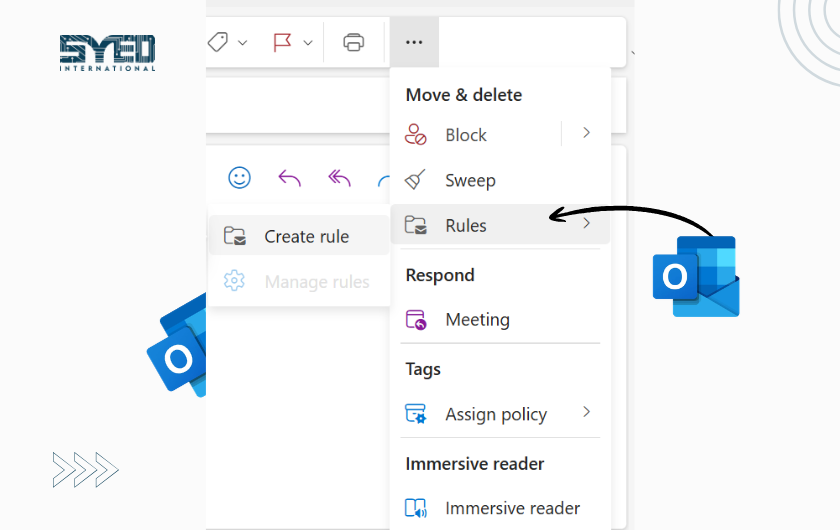
Outlook Rules for Small Business Email
Create understandable email rules that reduce routine sorting without hiding important messages or creating unexplained forwarding.
Outlook Rules for Small Business Email: Organise Messages Without Missing Enquiries
A busy inbox can contain customer enquiries, supplier updates, automated notifications and internal discussions at the same time. Sorting each message manually takes attention away from the work it represents.
Outlook rules can automate selected actions when messages meet defined conditions. However, a rule can also move an important enquiry into a folder nobody checks or create confusing behaviour when several rules overlap.
The best Outlook rules for small business email are narrow, understandable and tested. They should reduce routine sorting while keeping responsibility for customer communication clear.
This guide explains how to plan and review rules for a business environment. The exact options depend on the Outlook version, account type and provider, so the workflow should be checked against the setup your staff actually use.
Start With the Inbox Problem
Identify the specific problem before creating a rule. “Too much email” is a symptom, but it does not explain what should happen automatically.
Perhaps a supplier sends regular stock notifications that need a dedicated folder. Perhaps a particular automated report should be easy to find during a weekly review.
Choose one clear use case first. Avoid starting with a large collection of rules based on assumptions about how every message should be handled.
Ask the employee what happens after the message arrives. A useful rule should support that next action rather than simply make the main inbox appear less crowded.
Confirm the Outlook Version and Account
Classic Outlook, new Outlook, Outlook on the web and other clients do not all expose identical rule capabilities.
Microsoft’s rules documentation provides version-specific instructions. It also identifies limitations for certain account arrangements. Use the section that matches your environment. Microsoft Support
Check which mailbox the rule will affect. An employee with several accounts may create a rule in the wrong one.
Do not assume that a procedure used for a company Exchange mailbox applies unchanged to a third-party account. The service and application need to support the intended action.
Create Folders With a Clear Purpose
A rule that moves messages needs a destination that staff understand.
Use meaningful folder names such as Supplier Stock Updates or Weekly Reports. Avoid creating a separate folder for every minor variation unless the business has a reason to review them separately.
Decide who monitors the folder and how often. Moving email out of the inbox does not mean the work has been completed.
For customer-facing messages, visibility is particularly important. A folder structure should help employees find and act on enquiries rather than hide them from the place staff normally check.
Keep the arrangement simple enough that a covering colleague can understand it during leave.
Use Narrow Conditions First
Begin with conditions that clearly identify the intended messages. An exact sender or a stable automated notification pattern may be more reliable than a common word in the subject.
A rule matching the word “payment” could affect many unrelated conversations. It might move a legitimate customer query along with routine notifications.
Review sample messages before choosing the condition. Ask what similar messages should remain unaffected.
The best initial rule is easy to explain in one sentence. For example, “Move this supplier’s automated stock updates to the review folder” provides a clearer scope than “organise all purchasing email.”
Broaden the condition only when testing shows that the change is useful.
Choose Actions That Preserve Reviewability
Moving or categorising messages can be useful for organisation. More consequential actions, such as deletion or forwarding, need a clear business reason.
Do not begin with automatic deletion merely to reduce inbox volume. A mistaken condition could remove messages the employee needed to see.
Forwarding also deserves review because it changes where business information goes. Confirm the destination and the organisation’s approved handling process.
Prefer a rule whose result can be inspected easily during the first tests. The team should be able to find the message and understand why it moved.
Automation is most useful when it remains explainable to the person responsible for the mailbox.
Understand Rule Order and Overlap
Several rules may match the same message. Their order and supported processing behaviour can influence the final result.
Review the existing rules before adding another. An older rule may already handle the sender or subject, and the new rule may duplicate or conflict with it.
Give rules descriptive names. A list containing “Rule 1,” “Rule 2” and “New Rule” makes later investigation unnecessarily difficult.
Where a stop-processing option is used, understand its purpose and test the effect. Do not select it by habit without considering other intended actions.
Keep the rule list small enough to review. Unexplained rules tend to accumulate when nobody owns the mailbox’s organisation.
Test Messages That Should and Should Not Match
A useful test includes both positive and negative examples.
Send or identify a message that clearly meets the rule’s conditions. Confirm that it reaches the intended folder or receives the intended treatment.
Then test a similar message that should remain unaffected. This reveals whether the condition is too broad.
Check the result in the places staff actually work, including another device where relevant. If an action depends on a particular client being available, the business needs to understand that limitation.
Record the test result briefly. The goal is confidence in the behaviour, not a complicated testing project for a simple folder rule.
| Rule idea | Useful test | Risk to check |
|---|---|---|
| Move supplier updates | Exact automated message | Ordinary supplier conversations also move |
| Categorise project messages | Correct project reference | Similar reference matches another project |
| Separate newsletters | Known subscription sender | Important account notices are included |
| Organise internal reports | Stable report pattern | A changed subject bypasses the rule |
| Forward selected information | Approved test recipient | Confidential content goes elsewhere |
| Apply several actions | Message matching multiple rules | Unexpected order or duplicate handling |
Check Existing Messages Separately
Creating a rule and applying it to historical messages can be different actions.
Before running a rule over an existing collection, consider how many messages it may affect and whether the scope has been tested.
A condition that looks harmless on one new notification may move years of unrelated correspondence if used broadly.
Where supported, begin with a limited selection or a controlled test. Keep the result reviewable and avoid large-scale changes during a busy customer-service period.
Explain the change to the mailbox owner. Otherwise, they may interpret moved historical messages as missing email and start an unnecessary recovery investigation.
Keep Shared-Mailbox Responsibilities Clear
A shared mailbox involves more than one person’s preferences. A rule that suits one employee can confuse another who handles the same customer queue.
Agree on the folder structure and processing expectations with the team. Decide who may create or change rules and who reviews their effect.
Do not use automatic movement as a substitute for ownership of an enquiry. The business still needs a way to know who will reply.
If the team cannot reliably track status and responsibility through email alone, review the wider workflow. More rules may not solve a coordination problem that needs a different process.
Investigate Unexpected Rules
If messages are moving or forwarding without an understood reason, review the rule list and recent account activity through the approved support process.
An unfamiliar rule may have an ordinary explanation, but it should not be ignored. Record its conditions and actions before changing it where investigation requires that evidence.
Avoid assuming every strange rule proves compromise. Equally, do not dismiss unexplained external forwarding as a harmless preference.
Ask the responsible administrator to assess the context and preserve relevant records. The organisation needs a factual explanation of how customer communication was handled.
This review also helps identify forgotten rules created during an earlier project or staff handover.
Review Rules When Work Changes
A rule that was useful last year may no longer match the business.
Suppliers change addresses, projects close and employees move between responsibilities. Review rules during mailbox handover and after significant workflow changes.
Remove or revise obsolete automation through an agreed process. Keeping unused rules “just in case” can make the mailbox harder to understand.
Check whether the destination folders are still monitored. A working rule can create a practical failure if the person responsible for its folder has left.
For help reviewing business email workflows, contact Syed International with the mailbox setup and examples of the messages that need better handling.
Frequently Asked Questions
Can Outlook rules replace checking the inbox?
No. Rules organise selected messages; they do not take responsibility for the business action. Staff still need to review the relevant folders and respond appropriately. A quieter inbox is not proof that customer enquiries are being handled.
Why does the same rule behave differently on another account?
Account type, Outlook version and service capabilities can differ. Confirm the supported setup and review the relevant Microsoft instructions. Do not assume a rule created for one mailbox can be copied unchanged to every other email service.
Should I create a rule for every customer?
Not automatically. A large rule collection can become difficult to maintain. Start with patterns that solve a clear problem and remain easy to explain. Customer ownership may be better handled through another workflow if folders alone create confusion.
Can a rule affect messages already in the mailbox?
Relevant Outlook workflows may provide ways to run rules on existing messages, but review the scope before doing so. Test the condition first. Applying an untested rule to a large historical collection can move more information than expected.
What should I do if an unfamiliar forwarding rule appears?
Record what it does and involve the responsible administrator. Investigate the context instead of making an unsupported conclusion. The business should understand whether the rule is authorised and whether any information was sent to an unintended destination.
Automate Sorting While Keeping Accountability
Useful Outlook rules for small business email make routine handling easier without hiding important communication.
Start with a narrow purpose, test both matching and non-matching messages and review the arrangement when responsibilities change. To discuss your mailbox workflow, contact Syed International with the current rules and the problem you want to solve.