
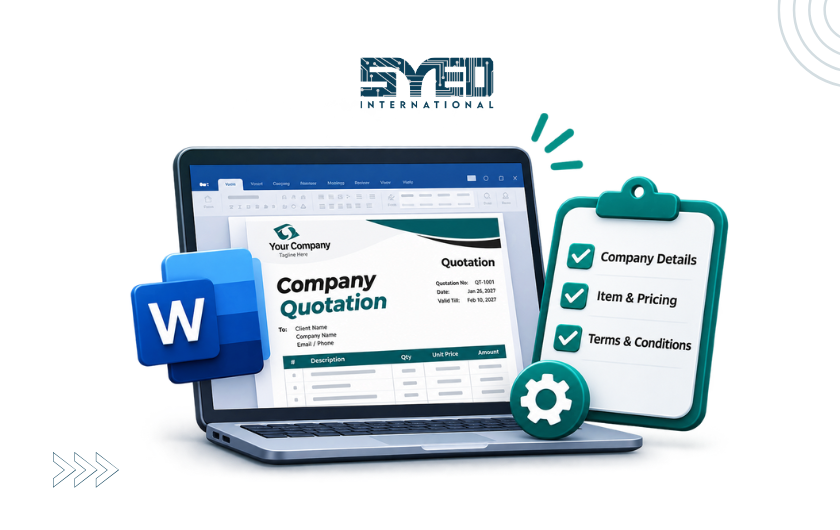
How to Create a Company Quotation Template in Word
Build a quotation template that helps staff prepare accurate customer documents without repeatedly changing layouts or copying outdated details.
How to Create a Company Quotation Template in Word
A good quotation helps a customer understand what you are offering, what it costs and what happens next. It should also help your staff prepare documents consistently without rebuilding the layout every time.
Learning how to create a company quotation template in Word begins with the information, not the decoration. A polished header cannot compensate for an unclear service description or a total that does not match the quoted work.
This guide explains how to plan, build and maintain a reusable quotation format. It is suitable for service businesses, suppliers and small teams in Pakistan that prepare customer documents in Microsoft Word. The examples describe document structure rather than prescribing legal or tax wording for every business.
Decide What the Quotation Must Communicate
Before opening Word, write down the questions a customer should be able to answer after reading the document. They should understand the proposed work, the quoted amount, relevant assumptions and the next action.
Consider the way your business sells. A fixed service package may need a concise scope, while a customised project may require phases, exclusions and customer responsibilities.
Discuss this with the person who approves quotations. The template should reflect the actual sales process rather than a generic design copied from another company. A document that matches your work is easier to complete accurately and easier for customers to compare.
Gather Approved Company Information
Prepare the company name, logo, contact details and any other information the business has approved for customer documents. Check that the telephone number and email address are monitored.
Use a suitable logo file that remains clear at the intended size. An oversized image can make the first page look crowded and leave too little room for the offer.
Keep the company information consistent with your website and other business materials. If staff use different addresses or contact numbers across quotations, customers may be uncertain which details are current. Assign someone to maintain the approved information.
Create a Simple Page Structure
Choose a readable page layout with sufficient space around the text. A quotation should be comfortable to scan on screen and understandable when printed.
Plan the opening area for company identity, the document title and the customer reference. Follow it with customer details, the scope and the commercial information.
Avoid making the first page mostly decorative. Customers should reach the substance of the offer quickly. A restrained layout with consistent alignment often looks more professional than a document filled with heavy borders, large icons and several unrelated colours.
Use Styles for Consistent Headings and Text
Word styles help keep headings and paragraphs consistent across the document. Instead of manually changing every section title, define an appropriate heading style and use it throughout.
Microsoft’s guidance on customising styles explains how formatting can be applied consistently. This is useful when the business later needs to update the appearance of a growing template. Microsoft Support
Keep the hierarchy simple. A section heading should explain what follows, such as Scope of Work or Delivery Arrangements. Avoid using a heading merely because the text needs to appear larger. The structure should support understanding as well as appearance.
Add Customer and Reference Fields
Include clearly identifiable places for the customer’s name, company, contact person and quotation reference. Add the relevant document date and any approved validity information.
Use placeholder wording that is difficult to overlook, such as “Customer Company Name,” rather than leaving the previous customer’s details in the master file.
Decide how references are assigned. The numbering process should be consistent with your company’s records. A reference becomes useful when staff can connect the quotation, customer reply and later revision without relying on memory or searching several unrelated folders.
Write the Scope Before the Price Table
Explain what the customer is buying in language they can understand. A line such as “website services” may be too broad if the quotation covers a specific set of pages, integrations and handover work.
Describe the deliverables and relevant boundaries. If content preparation, photography or ongoing maintenance is separate, make that clear where it matters.
Avoid filling the scope with technical terms that do not help the buyer make a decision. The document should be detailed enough to prevent confusion without turning into an implementation manual. Ask a colleague unfamiliar with the project to explain the offer back to you.
Build a Readable Quotation Table
Use a table when the customer needs to compare items, quantities or amounts. Keep headings clear and align values consistently.
Choose columns that fit your selling model. A service proposal may need deliverables and fees, while a product quotation may need descriptions, units and quantities. Do not add columns simply because another template contains them.
Check how long descriptions behave. A table that looks attractive with one short example can break when a real product name or detailed service description is added. Test realistic content before approving the design.
| Quotation Section | Purpose | What to Check |
|---|---|---|
| Company identity | Shows who issued the offer | Current name and contact details |
| Customer information | Identifies the intended recipient | Correct person and organisation |
| Reference and date | Supports tracking and revisions | Consistent reference system |
| Scope | Explains what is included | Clear deliverables and boundaries |
| Pricing table | Presents the commercial offer | Accurate figures and labels |
| Assumptions | Identifies conditions behind the offer | Relevant and understandable wording |
| Next step | Explains how to proceed | Monitored contact or approval route |
Handle Calculations Carefully
Word is useful for document preparation, but staff should not assume that every pricing table calculates itself. Understand how the chosen template handles totals.
If calculations are prepared elsewhere, establish a reliable review process before copying the approved figures into the document. Compare the item amounts and final total with the source.
Use a controlled example to test the process. Include more than one item and a realistic change in quantity. The aim is to discover whether editing introduces inconsistencies. A quotation with attractive formatting and incorrect arithmetic can damage confidence more quickly than a plain but accurate document.
Keep Terms Specific to the Offer
Include the practical conditions that the customer needs to understand. These may concern scheduling, customer-supplied information, delivery arrangements or the handling of additional work.
Use wording approved for your business. Avoid copying another company’s terms without checking whether they match your services and operating process.
Do not hide important limitations in small text at the end. If the proposed delivery depends on receiving customer content, explain that near the relevant commitment. Clear conditions help both parties understand the offer before work begins.
Save a Reusable Master
In a supported desktop version of Word, a standard template can be saved in the appropriate template format, commonly .dotx for a template without macros. Microsoft explains the process in its template creation guidance. Microsoft Support
Keep the master in an approved location and make its purpose clear. Staff should create a new quotation from it rather than repeatedly overwriting the original.
The exact workflow can differ between desktop and browser use. Test the method employees actually use. A technically correct template format is not useful if the team cannot find it or does not understand how to create a new document safely.
Test Long and Unusual Quotations
Create a realistic example containing a long customer name, several items and a detailed scope. Check page breaks, repeated headings and the space around the final approval area.
Review the document on a typical office computer and inspect its exported version. Make sure tables remain readable and important wording does not become separated from the amount or item it describes.
Ask another employee to prepare a sample without coaching. Their mistakes may reveal unclear placeholders or instructions. Improving those areas makes the template more dependable than relying on the original designer to check every document forever.
Review the Final Customer Copy
Before sending, confirm the customer details, reference, scope and figures. Check that no placeholder text or previous-customer information remains.
Review comments, revision marks and internal notes according to the application and the business’s approval process. Export or send the document in the agreed format and inspect that final file.
Keep the approved version in the customer’s record. If a quotation is revised, make the revision identifiable so staff know which offer is current. Avoid saving several files called “final” without a consistent reference or date.
Maintain the Template After Launch
A template needs an owner after its first release. Company details, service descriptions and working practices can change.
Invite staff to report recurring problems, such as a table that becomes difficult to edit or a field that customers regularly misunderstand. Review the issue before creating a separate unofficial template for every employee.
When the approved master changes, explain where the new version is located. Retire outdated working copies through a controlled process. The value of learning how to create a company quotation template in Word comes from consistent use over time, not only a polished first example.
Frequently Asked Questions
Should a quotation template contain every possible service?
No. Keep the master suitable for the business’s normal work and add relevant detail for each offer. An oversized template can encourage staff to leave unnecessary sections or contradictory wording. Separate templates may be appropriate when the selling processes genuinely differ.
Can I use an old customer quotation as the master?
It is better to create a clean approved master. Old quotations can contain customer-specific details, negotiated conditions or outdated pricing. If you use one as a starting point, remove those details carefully and test the resulting template before making it available to staff.
Should quotations be sent as editable Word files?
Use the format appropriate to the business process and customer requirement. A final PDF is often convenient for preserving presentation, but it is not a guarantee against alteration. Where editable collaboration is needed, make the document’s status and approval process clear.
Does a professional design need many colours and graphics?
No. Clear hierarchy, readable text and consistent spacing usually matter more. Use branding deliberately and keep attention on the offer. A quotation should help the customer understand and assess the work rather than compete with the content through decoration.
How often should the master be reviewed?
Review it when company details, services or approved wording change, and when repeated user problems appear. Keep an identifiable owner and version. A simple maintenance routine is more dependable than allowing staff to modify separate copies indefinitely.
Create a Quotation Your Team Can Use Reliably
Knowing how to create a company quotation template in Word means combining accurate content with a reusable working process. Build around the customer’s questions, test real examples and preserve a clear approved master.
For help aligning Microsoft Office tools with your business workflow, visit Syed International. Bring a sample of the documents your team prepares and the problems they encounter so the discussion can focus on practical improvements.